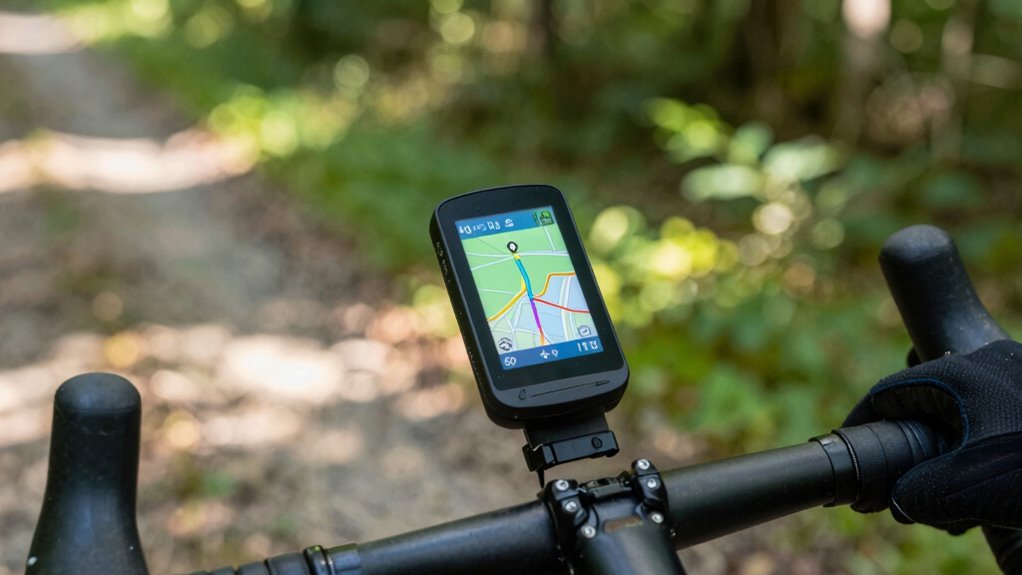

To set up your bike computer for navigation and avoid getting lost, start by planning your route using apps like Strava or Komoot, then transfer it via supported formats such as GPX. Make certain your device is fully charged, firmware is up to date, and navigation features are enabled. Attach it securely, confirm GPS signal, and familiarize yourself with key functions. Paying attention to these steps can boost your confidence; discover more tips to master your rides safely.

Get sports gear delivered free with Prime
- Fast, free delivery on millions of items
- Prime Video, Amazon Music and more included
- Member-only deals all year
Key Takeaways
- Plan and transfer detailed routes using compatible mapping apps and supported file formats like GPX.
- Double-check navigation features are enabled, firmware is updated, and waypoints are set before riding.
- Securely attach the device to handlebars, confirm GPS signal, and ensure full battery charge prior to departure.
- Monitor GPS signal during ride, follow on-screen cues, and use alerts to stay oriented without reliance on the screen.
- Practice navigation functions beforehand and verify app compatibility to ensure smooth, error-free routing.
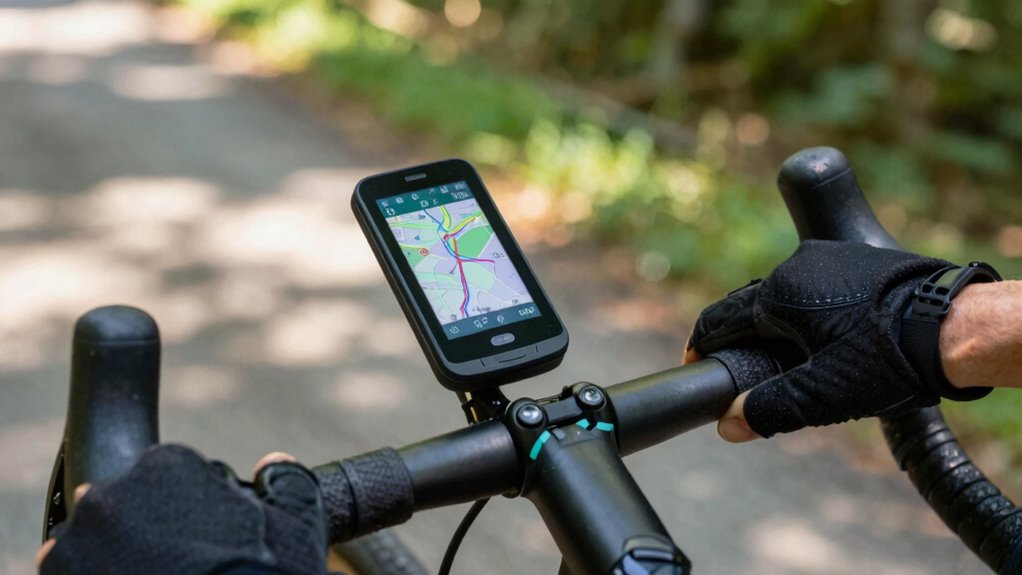
Ever wondered how to navigate unfamiliar routes effortlessly on your bike? Setting up a bike computer for navigation can seem intimidating at first, but with the right approach, it becomes straightforward. The key is understanding how to do effective route planning and making sure your device is compatible with your needs. Before heading out, take some time to plan your route carefully. Use mapping apps or online tools that allow you to create detailed routes tailored to your preferences. You can select scenic paths, avoid busy roads, or find bike-friendly trails. Once you’ve mapped out your route, transfer it to your bike computer. Many modern devices support various formats like GPX files, which makes importing routes simple. Check your device’s compatibility beforehand—some models work seamlessly with popular apps like Strava, Komoot, or RideWithGPS, while others may require manual input or specific apps for synchronization. Making sure the device is compatible is vital; otherwise, you might find yourself unable to transfer your planned routes, leading to frustration on the road. Additionally, understanding the importance of contrast ratio can help optimize your device’s screen visibility in different lighting conditions.
When your route is loaded onto the device, double-check that all navigation features are enabled. Set waypoints or landmarks if your device allows, so you have clear visual cues along the way. Make sure your device’s firmware is updated to avoid bugs or issues during navigation. It’s also wise to familiarize yourself with the device’s interface before setting out. Practice how to start navigation, switch between routes, and access key features like recalculating routes or rerouting if you miss a turn.
On the day of your ride, attach the bike computer securely to your handlebars and power it on. Confirm that GPS signals are acquired—most devices display a signal strength indicator. If your device supports it, connect to a power source or ensure the battery is fully charged to prevent losing navigation halfway through your ride. During your ride, keep an eye on your screen, but don’t rely solely on it; use auditory cues or vibration alerts if your device offers them. These features help you stay oriented without constantly looking down.
bike computer with GPS navigation
As an affiliate, we earn on qualifying purchases.
As an affiliate, we earn on qualifying purchases.
Frequently Asked Questions
How Do I Update the Maps on My Bike Computer?
To update the maps on your bike computer, start by connecting it to your computer or mobile device. Check for available map updates and firmware upgrades via the device’s app or website. Download and install the updates carefully, ensuring your device stays connected during the process. Regular map updates and firmware upgrades improve navigation accuracy and fix bugs, keeping your bike computer running smoothly and reliably for your adventures.
Can I Use a Bike Computer Offline Without Internet?
Yes, you can use your bike computer offline for navigation without internet. Just make sure to download the necessary maps and updates beforehand. Offline navigation works well when you have the latest map updates installed, so your device accurately guides you even without a connection. Keep your maps updated regularly to guarantee smooth navigation, especially if you’re exploring new routes or areas.
What’s the Battery Life for Navigation Features?
Your bike computer’s navigation features typically offer a battery longevity of around 8 to 15 hours, depending on usage. To extend this, you should activate power saving modes, which reduce screen brightness and disable non-essential functions. These settings help conserve battery life during long rides, ensuring your navigation stays reliable without needing frequent recharges. Always check your device’s specific specs for more precise battery expectations.
Are Bike Computers Compatible With All Smartphone Apps?
Not all bike computers are compatible with every smartphone app, but many now feature broad smartphone compatibility and seamless app integration. You should check the specific model’s specifications to guarantee it works with your preferred apps. Look for features like Bluetooth or ANT+ connectivity, which facilitate smooth integration. This way, you can effortlessly track your rides, navigate confidently, and access real-time data without worrying about compatibility issues.
How Do I Customize Route Preferences on My Device?
To personalize route preferences on your device, access the preference settings menu. You can modify options like avoiding highways, tolls, or steep hills for better route customization. Typically, you’ll find these settings in the navigation or route section of your bike computer’s menu. Change the preferences to match your riding style, and save the settings. This guarantees your device guides you along routes tailored to your preferences.
Conclusion
Now, with your bike computer ready, you’re free to explore new routes without fear of getting lost. It’s like having a trusted friend guiding you through unfamiliar streets, yet also a silent partner that keeps your hands on the handlebars. While the device offers clarity and confidence, remember that sometimes the best adventures happen when you embrace a little mystery. So, ride confidently—your navigation tool is there, but the journey’s yours to enjoy.
NFL season / tailgating Picks
team gear
As an affiliate, we earn on qualifying purchases.