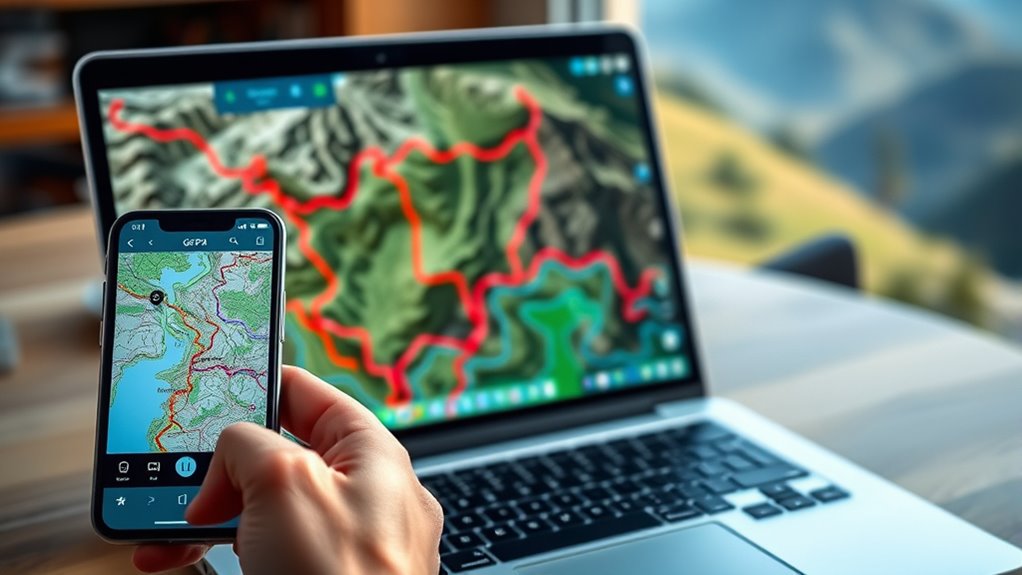

To import and use GPX files, first guarantee your GPS device supports the format and update its firmware if needed. Connect your device via USB, SD card, or cloud service, then use the device’s import or load feature to transfer the file. Verify the data displays correctly on your device, and make any necessary adjustments. Properly preparing and loading your GPX files will boost navigation accuracy—keep going to learn more helpful tips.
Key Takeaways
- Verify your GPS device’s compatibility with GPX files and update its firmware if necessary.
- Transfer GPX files via USB, SD card, or cloud services, ensuring proper format and file integrity.
- Use the device’s import or load feature to load the GPX file and confirm the data displays correctly.
- Convert GPX files if needed to match device-supported formats or versions using online or software tools.
- Review and customize imported routes within your device or app for accurate and tailored navigation.

Importing and using GPX files is a straightforward way to enhance your navigation experience. Whether you’re planning a hiking route, cycling trip, or road adventure, these files allow you to transfer detailed waypoints, tracks, and routes directly to your GPS device. Before you start, it’s essential to check your GPS device compatibility, as not all devices support GPX files equally. Some devices might require specific formats or additional software for importing data. Once you confirm compatibility, you can easily transfer your GPX files via USB, SD card, or even cloud services, depending on your device’s capabilities.
Importing GPX files enhances navigation by transferring detailed routes to your GPS device easily.
To get started, locate the GPX file you want to use. These files often come from online trail databases, route planning apps, or GPS software. If you need to modify or customize your route, editing GPX data is a helpful step. Many GPS programs and online tools let you add, delete, or adjust waypoints, tracks, and routes within the file. This flexibility means you can fine-tune your navigation plan before importing it to your device, ensuring it perfectly matches your journey’s needs. When editing GPX data, keep the structure and format intact; improper modifications can cause import errors or incorrect navigation.
Once your GPX data is ready, connect your GPS device to your computer or open your chosen app that supports GPX files. Most devices or software will have an import or load option. Simply select this feature, browse to your GPX file, and confirm the transfer. After importing, it’s wise to review the data on your device to ensure all waypoints and routes appear correctly. This step helps prevent surprises during your trip and confirms the data transferred accurately. Additionally, understanding GPS device compatibility ensures a smoother import process and reduces the risk of errors.
It’s worth noting that some GPS devices or apps might require you to convert GPX files into a specific version or format. In such cases, specialized software or online converters come in handy, allowing you to adapt your files without losing important data. Additionally, many navigation apps offer features to further customize your imported GPX routes, like setting preferences or avoiding certain areas. This level of control ensures your navigation experience is tailored to your preferences.
Frequently Asked Questions
Can GPX Files Contain Elevation Data?
Yes, GPX files can contain elevation data. This data helps improve elevation accuracy, which is essential for precise navigation and analysis. When you import GPX files, you can use the elevation data for better data visualization, making it easier to understand terrain changes. By analyzing elevation, you get a clearer picture of your route’s difficulty and landscape, enhancing your overall experience and planning.
Are GPX Files Compatible With All GPS Devices?
GPX files are generally compatible with most GPS devices, but you should verify your device’s compatibility for seamless use. Keep in mind that gpx file limitations, such as format restrictions or missing data, might cause issues. You may need to convert or adjust files to ensure proper functioning. Always verify your device’s specifications and update firmware if necessary to avoid compatibility problems when importing gpx files.
How Do I Edit a GPX File?
To edit a GPX file, you can use GPX editing software or online tools. First, open your GPX file in the editor. Then, customize waypoints by adding, deleting, or modifying their details like names, coordinates, or descriptions. Save your changes, and your updated GPX file is ready to be uploaded back to your GPS device. This process allows you to tailor your route or waypoint information easily.
Can I Convert GPX Files to Other Formats?
Yes, you can convert GPX files to other formats like KML or CSV. For example, a hiker might convert a GPX trail to KML for viewing in Google Earth. This involves data conversion, where you change the file format to suit your needs. Use online tools or software like GPSBabel to make the process simple and efficient, ensuring your data remains accurate across different applications.
What Are Common Errors When Importing GPX Files?
When importing GPX files, you might encounter common errors like file format issues, which occur if the file isn’t properly formatted or corrupted. Metadata inconsistencies can also cause problems, such as mismatched timestamps or missing details, disrupting your data accuracy. To avoid these errors, double-check your GPX files for proper formatting and make certain all metadata is consistent before importing. This helps ensure a smooth process and accurate data usage.
Conclusion
Now that you know how to import and use GPX files, you’re like a skilled navigator charting new paths through digital landscapes. These files become your trusty compass, guiding you across mountains, rivers, and city streets with ease. With each click and upload, you’re weaving a vibrant tapestry of adventures, turning data into a vivid map that sparks exploration. Embrace this tool, and let your journeys unfold like stories etched across the canvas of your screen.